Authorization in the launcher
In this section, you will log into the Multilaunchess launcher for the first time.
First launch and authorization window
After installation, start the Multilaunchess launcher.
- In the Email field, enter the address used during registration.
- In the Password field, enter your password.
- Click the Log in button.
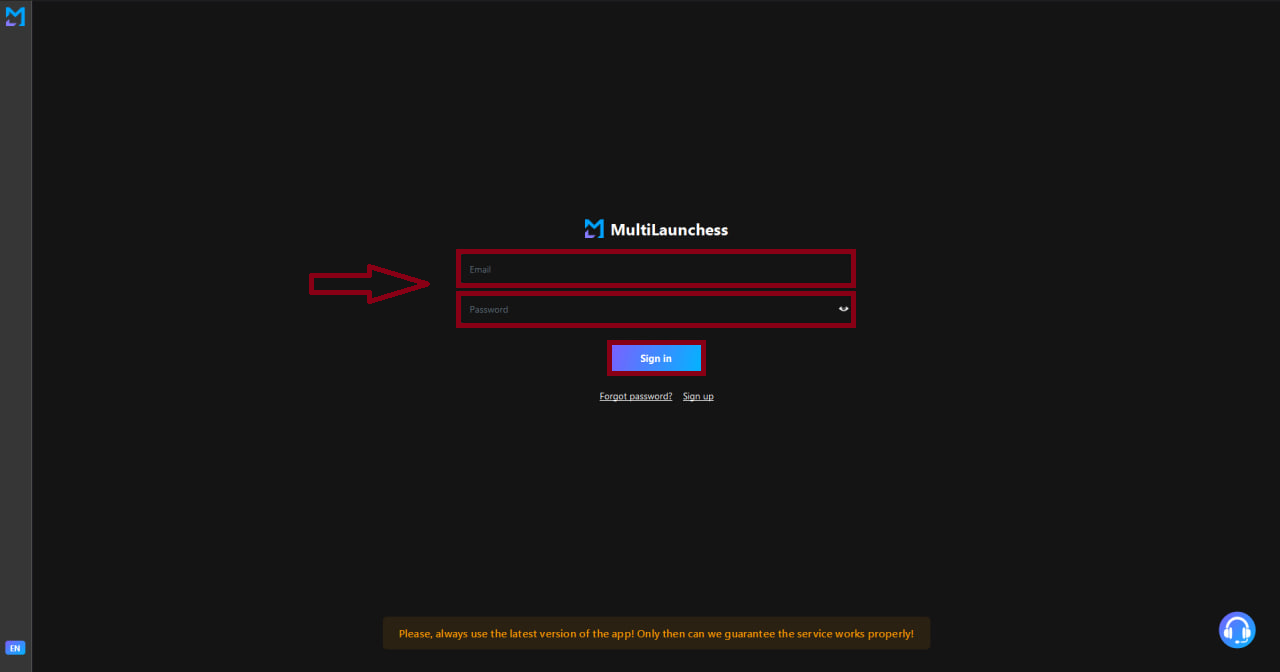
If the data is correct, the main launcher window will open.
Language switcher
In the bottom-left corner of the authorization window, you can find the language switcher.
Available languages:
- Русский
- English
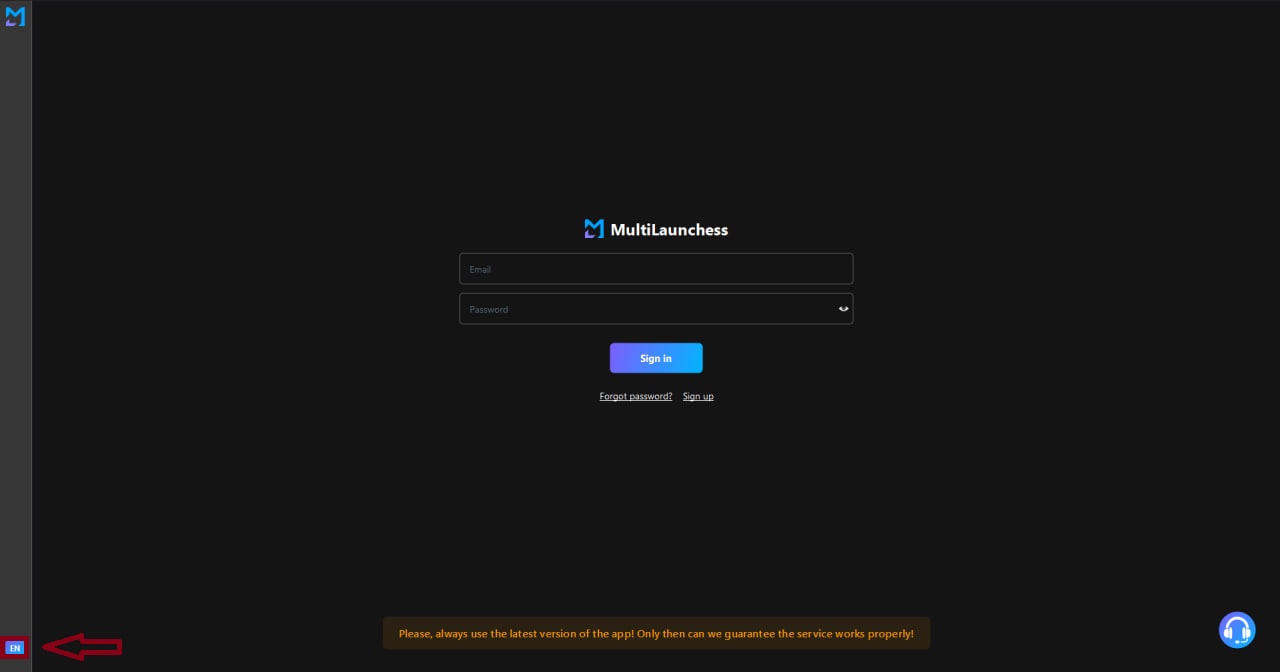
After switching, the language of the authorization window updates immediately.
Support
In the bottom-right corner of the window, there is a support icon.
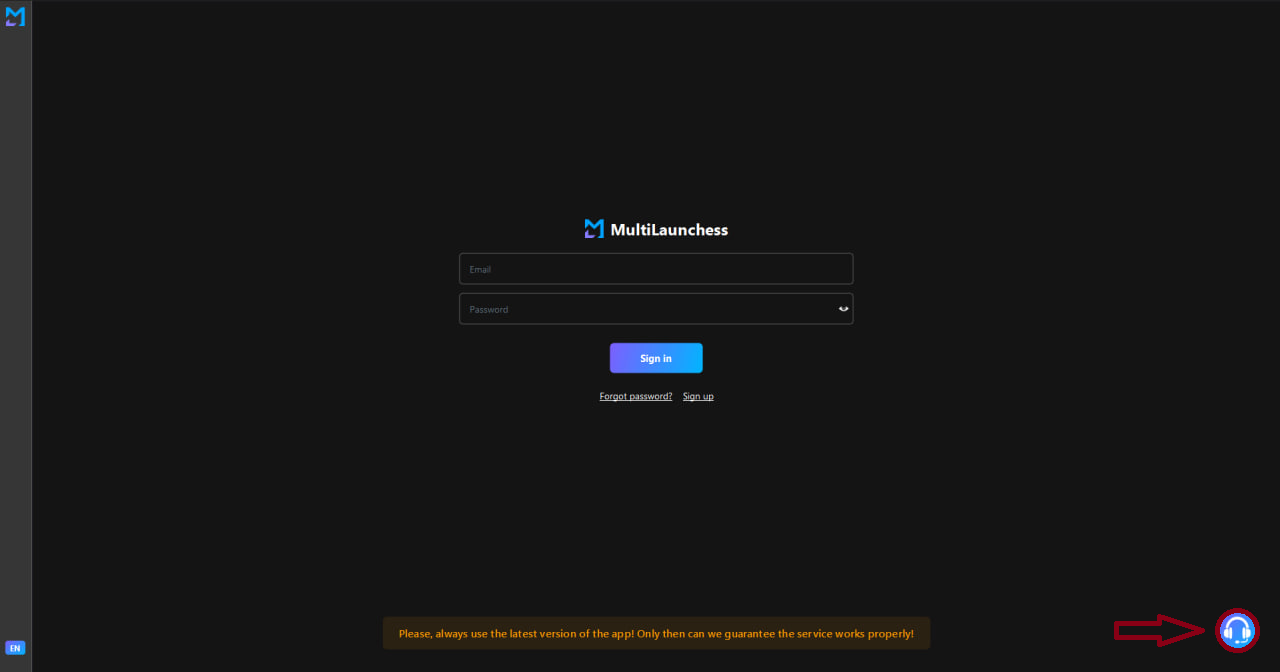
Click it to open the support chat window, where you can:
- ask questions about the launcher;
- report bugs;
- get assistance from support.